Perler Bead Pattern Maker
Upload a photo, illustration, or pixel art file and turn it into a bead grid in your browser. Adjust size, color count, and brand palette, then download a PDF or keep editing.
Bead Patterns Made by Other Users
Preview how different image types become bead patterns and how size, color count, and difficulty change the result.
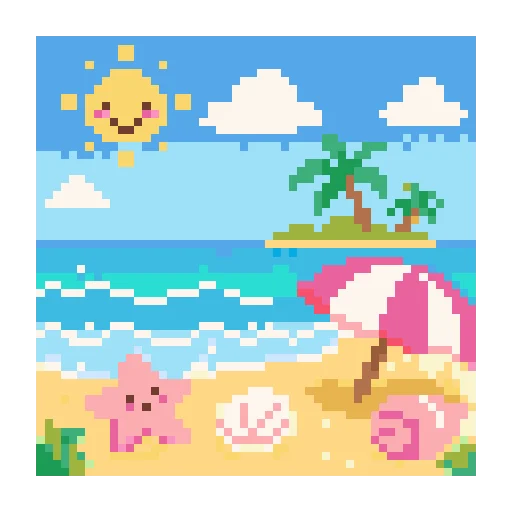
Cute Beach Landscape
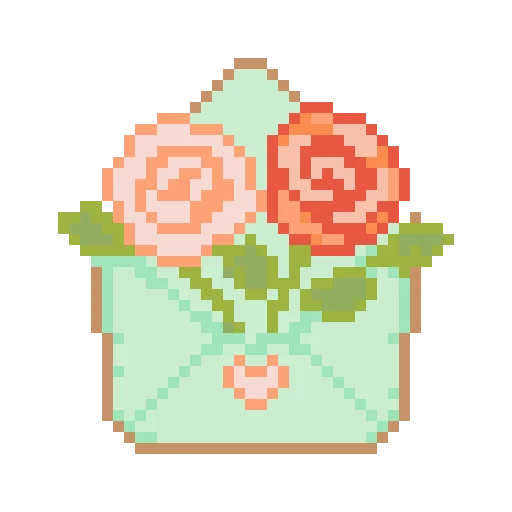
Envelope With Two Roses
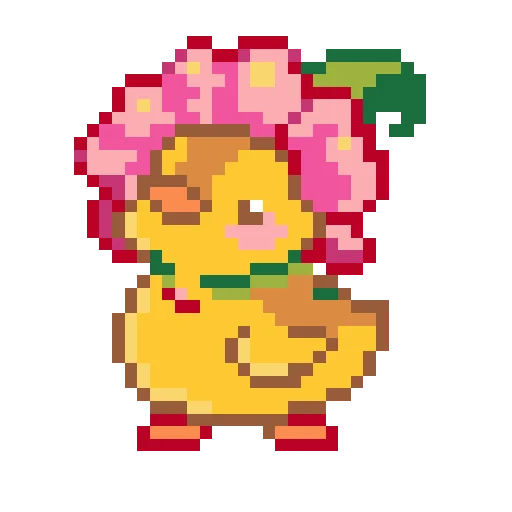
Flower Hat Duck
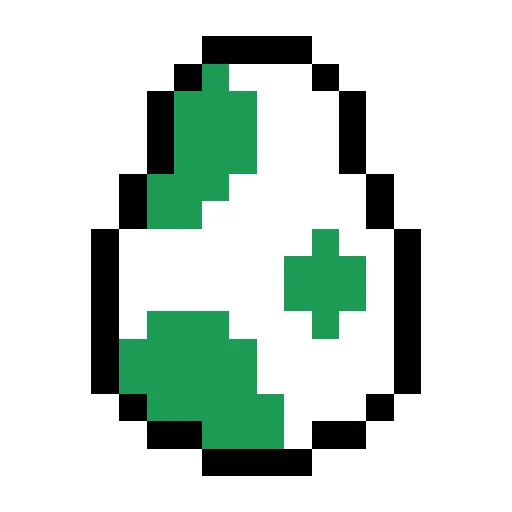
A Green Egg
Heart Chick
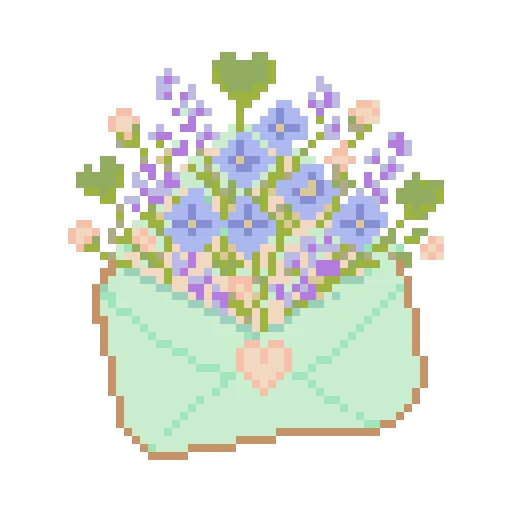
Mint Envelope Flower Bouquet
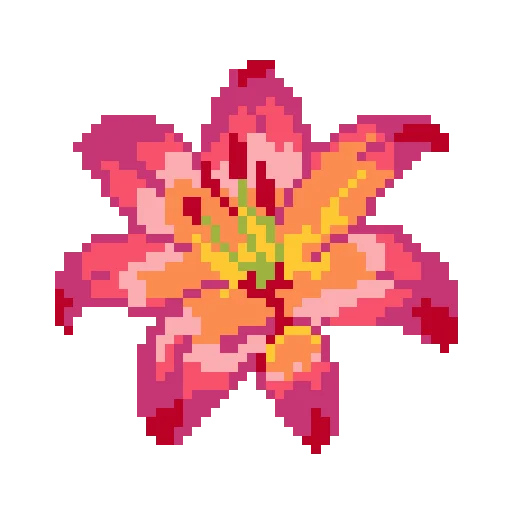
Pink Lily Flower
What is Perler Bead Pattern Maker?
Perler Bead Pattern Maker turns a photo, illustration, or pixel-art image into a chart you can actually build. After uploading an image, you choose the grid size, color count, and bead palette; the tool converts the artwork into readable cells and maps colors to bead codes you can buy.
Before you start placing beads, you can check the final size, see how many beads each color needs, and make sure the printed chart is easy to read. If a detail looks muddy or a color area is too noisy, you can switch back to edit mode and clean it up by hand.
Online Perler Bead Pattern Maker
Upload, tune, preview, and download on one page. Choose an image, adjust bead width and height, pick a brand palette, set the maximum colors, and generate a usable bead pattern.
- Processes images in your browser
- Printable PDF export
- Real bead color palettes
Choose the image source and format
Start from a photo, illustration, icon, sketch, or pixel-art file; the browser reads the image size and turns the main shapes into an editable bead grid.
Tune bead size and palette
Set the grid width and height, maximum color count, and Perler, Hama, Artkal, MARD, or generic palette so the chart balances detail, bead count, and prep effort.
Preview bead codes and export
Review grid lines, bead codes, per-color counts, and the printable PDF layout; jump back into edit mode when a color needs cleanup.
How to use Perler Bead Pattern Maker
Upload an image, crop the subject, then set the bead width, height, color count, and brand palette. After the preview is generated, check the grid, bead codes, and counts; if a detail needs cleanup, switch back to edit mode before downloading the PDF or saving the pattern.
- 1
Upload an image
Start with a photo, icon, drawing, or pixel art file from your device.
- 2
Adjust size and palette
Set width, height, color count, and choose Perler, Hama, Artkal, MARD, or a general palette.
- 3
Preview and refine
Check the grid, color codes, and color list, then crop or switch pattern style if needed.
- 4
Download or save
Download a printable PDF, or sign in to save the project and continue editing later.
Tool Features
Image to bead pattern
Turn photos or illustrations into bead grids while reducing color complexity and preserving the main shape.
Real brand palettes
Match colors against Perler, Hama, Artkal, MARD, and general fuse bead palettes to reduce guesswork.
Printable PDF
Export a PDF with the pattern, color codes, and bead counts for printing and sorting.
Bead count summary
See quantities, hex references, and total bead count for each generated palette color.
Editable results
Switch into editing mode after generation to clean up local colors or fix details.
Browser-first processing
Image conversion runs in the local browser when possible, and unsaved local results are not public.
What can you make with it?
Different projects need different grid sizes and color counts. Test with a small grid first, then scale up when you need more detail.
Beginner small patterns
Generate compact, low-color patterns that are easier to finish.
Character and portrait projects
Convert clear character art, avatars, or portraits into buildable bead charts.
Charms, badges, and coasters
Plan small fixed-size bead projects that are easy to print and sort.
Classes and material prep
Teachers, parents, and craft groups can use PDFs and color lists to prepare materials.
Privacy and Usage Rights
Image processing is designed to happen in the browser first. Local results that are not saved or published are not made public automatically and do not enter the sitemap. Please confirm the rights for any uploaded image, character, logo, or reference material.
Perler Bead Pattern Maker FAQ
Is Perler Bead Pattern Maker free?
Yes. You can currently generate bead patterns in the browser and download PDFs for free. If paid limits are added later, they should be clearly shown on the page.
Can I turn a photo into a Perler bead pattern?
Yes. Upload a photo, choose the size, palette, and color count, then generate a grid-style bead pattern.
What images work best?
Images with a clear subject, simple background, and strong contrast work best. Small grids are easier to build, while larger grids keep more detail.
Can I choose the number of colors?
Yes. Lower the maximum color count for an easier build, or raise it to preserve more shading and detail.
Which bead brands are supported?
The maker can support Perler, Hama, Artkal, MARD, and general fuse bead palettes. The exact options depend on the palettes available in the app.
Can I download a printable PDF?
Yes. The PDF should include the bead pattern, color codes, bead counts, and basic project information for printing and sorting.
Will my image be public?
No, images are not made public automatically. Only projects that a user intentionally saves, publishes, and allows for display can appear publicly.
Can I use the result commercially?
The generated grid can be used for making a project, but you must confirm the rights for any uploaded image, character, logo, or reference material.
Why does the result not look exactly like the original?
Bead patterns are limited by grid size and available colors. Increase the grid size, allow more colors, or crop closer to the subject for a better result.
Can I edit colors after generating?
Yes. Switch to editing mode to use tools such as brush, eraser, and color picker for local cleanup.