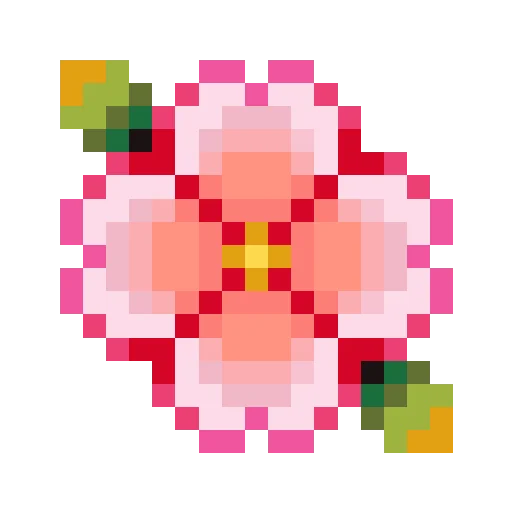
Flower19 x 19 · 15 colors
Upload a photo, illustration, logo, or pixel art image and convert it into a bead grid in your browser. Tune the bead size, color count, and palette before exporting a printable guide.
Preview how different image types become bead patterns and how size, color count, and difficulty change the result.


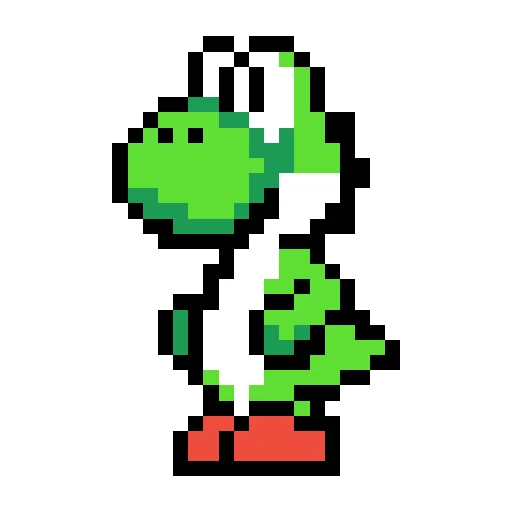

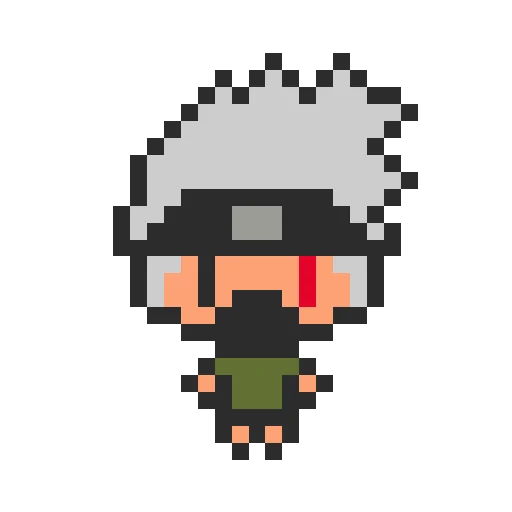

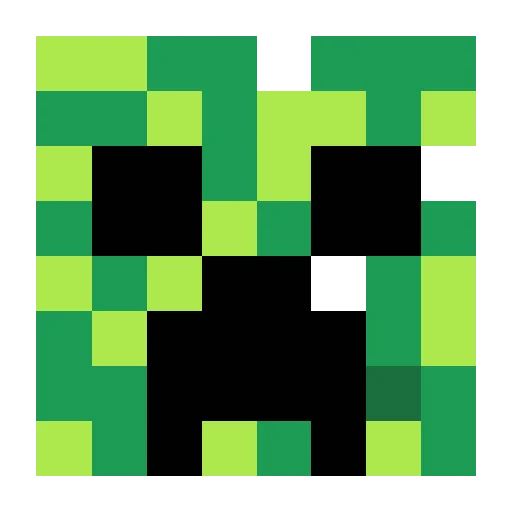
Image to Perler bead pattern means turning a photo, illustration, logo, icon, or pixel-art file into a grid you can build with fuse beads. It is more than enlarging the image or adding a mosaic filter: the converter first resizes the source to your chosen bead width and height, lets you decide whether to keep the original aspect ratio, then maps every cell to the closest available color in the bead palette you selected.
The main tradeoff is recognizability versus buildability. Larger grids preserve faces, pet fur, outlines, and illustration details, but they also use more beads. Higher maximum color counts keep more shading, but they make sorting and buying colors harder. Advanced options handle the difference between photos and pixel art: photo mode can resize more smoothly, pixel mode can keep hard edges, standard style preserves the overall source, dither can soften gradients, and cartoon or sketch styles can reduce noise while making the subject easier to read.
This section is about the image conversion parameters themselves: choose the bead brand palette, shrink the source into a specific bead width and height, keep or unlock the original aspect ratio, cap the number of colors, and tune photo, pixel-art, cartoon, dithered, or sketch-style processing.
Start by choosing Perler, Hama, Artkal, MARD, or another built-in palette. The converter maps image colors to bead colors you can actually buy, so changing the brand can change close matches, color codes, and the final supply list.
Width and height decide how many beads the finished chart uses. Keep ratio prevents portraits and logos from being squeezed; unlocking it lets you make a fixed coaster, charm, banner, or square avatar. The original-size note helps you decide whether to crop first.
Source type controls resizing behavior: pixel art keeps harder edges, while photo mode is smoother. Pattern style switches between standard, cartoon, dither, and sketch; color matching, color reduction, and small-color cleanup help turn noise, gradients, and tiny details into a chart that is easier to bead.
Use cropping to choose the subject, then set width, height, and aspect ratio to define the shape of the bead chart. Next, choose the maximum color count and brand palette to control how many bead colors the finished pattern uses. Finally, adjust source type, pattern style, color matching, and small-color cleanup so soft photo gradients or hard pixel-art edges become bead cells that are easier to place.
Pick the bead brand or size first so the generated colors match the materials you plan to use.
Use width, height, and keep ratio to control the final shape; photos often start with ratio on, while charms and coasters may use fixed dimensions.
Fewer colors are easier to sort and fuse, while more colors preserve shading; try 12 to 20 colors first, then adjust from the preview.
Choose pixel or photo source type, then refine with standard, cartoon, dither, sketch, and small-color cleanup options.
Turn it on so width and height change together for portraits, pets, and logos; turn it off for square icons, banners, or a specific pegboard shape.
Pixel mode keeps crisp edges for icons and cartoons, while photo mode resizes more smoothly for people, pets, food, and images with natural light.
Standard stays close to the source, cartoon cleans up color blocks, dither uses dot patterns for gradients, and sketch emphasizes light, shadow, and outlines.
Fast mode is useful while experimenting, balanced is the steady default, and precise matching checks colors more carefully before a final export.
Subject mode keeps large areas clean, detail mode protects eyes, highlights, and texture, and balanced mode sits between a cleaner image and small accents.
Positive padding adds space or a fill color around the design, negative padding trims noisy edges, and small-color cleanup merges tiny color islands into nearby shades.
Photos, logos, pixel art, and illustrations need different settings. Start by reading the subject shape, then decide whether to keep the ratio, how many colors to allow, and whether standard, cartoon, dither, or sketch style makes the result clearer.
Keep ratio on, use photo source type, start at 48 beads or larger, and allow more colors when faces, fur, or shadows matter.
Lower the maximum color count and try pixel source type or cartoon style so edges stay clean and color blocks stay flat.
Nearest-neighbor scaling and pixel source type usually preserve hard edges. If the source is already small pixel art, avoid overusing dither.
Dither can make transitions softer, while cartoon style with fewer colors is better for kids' crafts or faster builds.
Image conversion is designed to run in the browser first for grid, palette, and preview calculations. Local conversions are not shown in the public gallery unless you intentionally save or publish them. If you turn a photo, character image, logo, or trademarked reference into a shareable pattern, confirm that you have the right to use and display it.
Usually yes for photos, portraits, pets, and logos because it prevents faces and shapes from stretching. Turn it off only when you need a fixed coaster, charm, square icon, or specific pegboard shape.
Small charms can start around 24 to 32 beads. Portraits or pet photos usually need 48 beads or more to keep expressions and fur readable. Larger sizes look closer to the source but require more beads, time, and print space.
No. More colors preserve shading and gradients, but make sorting and buying beads harder. Beginners can try 12 to 18 colors first; portraits, pets, or detailed illustrations may need 20 or more.
Choose pixel art for icons, cartoons, game sprites, and hard-edged artwork. Choose photo for people, pets, food, and naturally lit images because smooth resizing usually looks better.
Standard stays closest to the source blocks. Cartoon makes cleaner color areas. Dither uses dot patterns to soften transitions. Sketch emphasizes light, shadow, and outlines for a drawn look.
Fast is best while experimenting with size and color count. Balanced is the safest default for most images. Precise checks colors more carefully before final export, but can take longer.
When a color appears in only a few beads, it can be hard to sort and may just be image noise. A cleanup threshold merges those tiny color islands into close neighboring colors for a cleaner chart.
Positive padding adds blank or filled space around the design. Negative padding trims noisy edges. It helps when you need a fusing border, badge shape, coaster margin, or cleaner crop.
The chart can only use colors that exist in the selected bead palette, so the converter chooses close bead colors instead of arbitrary screen colors. Switching brand, raising color count, or using precise matching can improve the result.
Yes. After generating the chart, switch to edit mode and use the brush, eraser, and color picker to fix eyes, lettering, outlines, background noise, or a few mismatched beads.