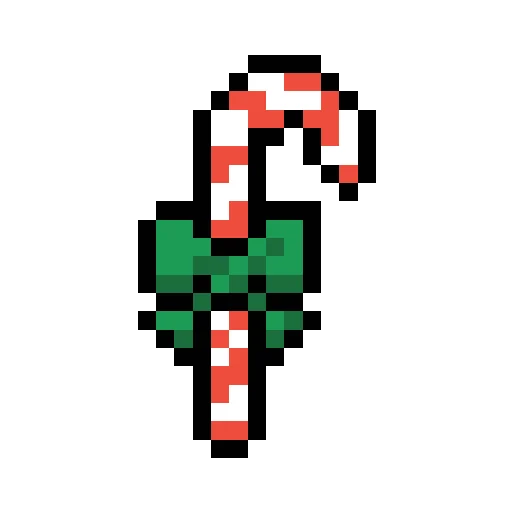
Holiday15 x 24 · 5 colors
Design a bead chart from a blank canvas or use an uploaded image as a starting point. Adjust the grid, palette, color list, and editing tools until the pattern is ready to print.
This set highlights hand-drawn, icon-like, and small decorative public patterns so you can see how outlines, color blocks, and dimensions work on a blank canvas.
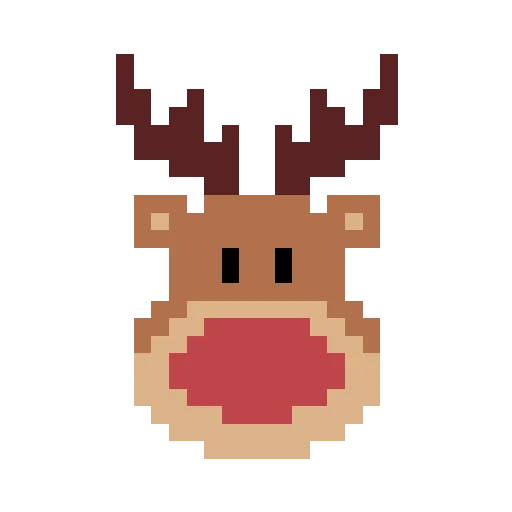
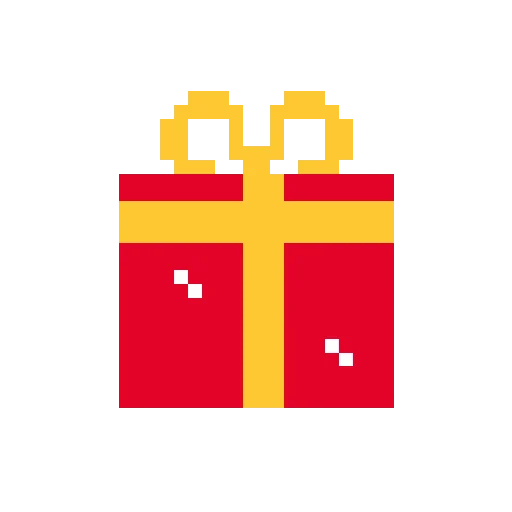
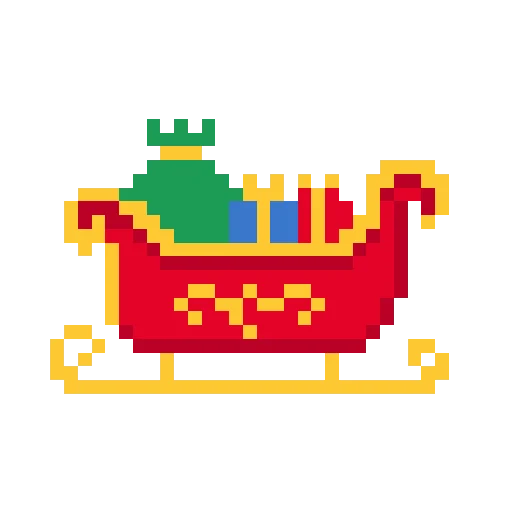
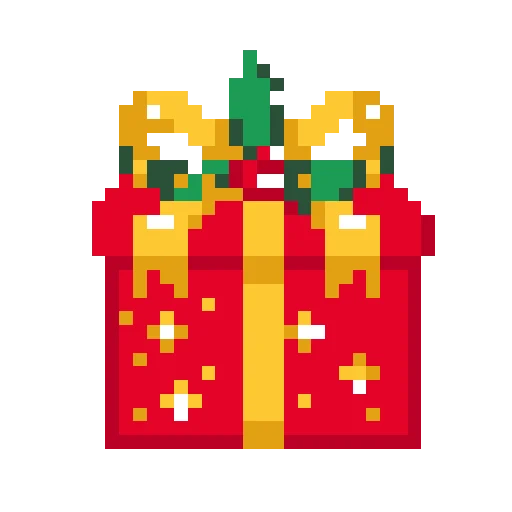


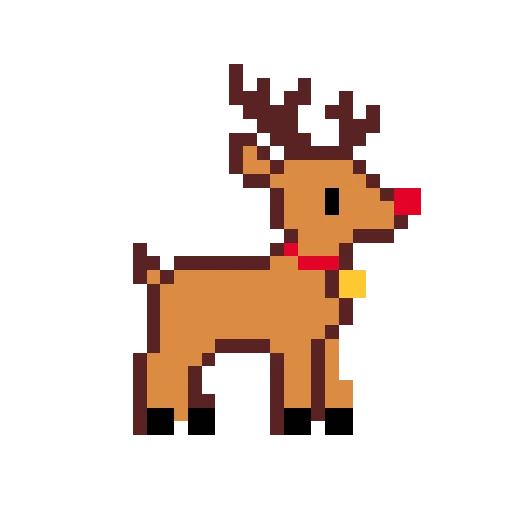
A Perler bead pattern designer is not only an image converter. It is a planning workspace where each cell represents one bead: outline or blank space, filled background or open edge, limited palette or richer shading, one pegboard or several boards. The designer keeps those decisions on one editable canvas, so you can create a blank chart, draw cell by cell with the brush, fill larger areas with the bucket, then use the eyedropper and eraser for cleanup.
This workflow is useful when you want to draw an original character, lettering, charm, coaster, border, or geometric motif. You do not need a perfect source photo. Set the width, height, and palette first, then design while checking color codes, bead counts, and the printable result, before the pattern becomes too large, too colorful, or difficult to fit on a pegboard.
Work on a canvas that maps directly to beads: create a blank grid, choose width, height, and palette, draw outlines with the brush, fill regions with the bucket, sample colors with the eyedropper, then check color codes and PDF output.
Create a grid at the exact bead width and height you need, then block in outlines, symmetry lines, or lettering before adding detail. You do not need a finished photo to begin designing.
Use the brush for lines and small shadows, the bucket for connected backgrounds and large color blocks, the eyedropper to reuse colors already on the canvas, and the eraser to remove mistaken beads.
Set the finished width and height before you begin, or add top, bottom, left, and right padding around an existing design. Review grid lines, color counts, and bead codes before exporting a printable PDF.
Create a blank canvas and choose the finished dimensions first: 16 x 16 for charms, 32 x 32 for small desk pieces, or larger grids for display projects. In edit mode, draw the main outline and recognition points with the brush, fill backgrounds or large blocks with the bucket, sample existing colors with the eyedropper, and erase mistakes as you go. Before exporting, zoom out and check edges, symmetry, pegboard fit, and per-color bead counts.
Choose a blank canvas, set width, height, bead shape, and palette so the design fits your pegboard and project size.
Use the brush to place the outside shape, eyes, lettering, or symmetry marks before spending cells on decorative detail.
Use the bucket for connected backgrounds and large blocks, the eyedropper to reuse colors, and the eraser to remove stray cells.
Zoom out to review the whole pattern, confirm bead codes and counts, then download or save the printable chart.
Create a bead grid without uploading an image, then plan the pattern from the first cell.
Use the brush to repair lines, adjust eyes, refine lettering, or paint small shadows with controllable size and shape.
Fill connected areas with one color for backgrounds, borders, clothing, gift boxes, or geometric blocks.
Sample colors already on the canvas to keep codes consistent, and erase mistakes without rebuilding the entire chart.
Set the finished width and height, then add top, bottom, left, or right padding when the design needs breathing room.
Review bead quantities and color codes, then export a printable PDF for sorting and building.
Blank canvas design works best for clear silhouettes, readable color blocks, and fixed-size projects. Get the outer shape right first, then decide how much shading and background detail the grid can afford.
Start from a simple silhouette, then add hair, eyes, clothing blocks, and small shadow accents.
Plan spacing, border color, and background color inside a fixed grid so letters stay readable after fusing.
Use square or compact canvases for small pieces that can be printed, sorted, and repeated.
Draw motifs such as snowflakes, gifts, borders, and pixel icons where symmetry and repeated blocks matter.
Blank canvases and local edits stay in the browser workspace first. Designs are not made public automatically unless you choose to save, publish, or allow display. If you reference characters, logos, photos, or another creator’s work, confirm the rights before using the result.
Yes. You can currently create blank canvases, edit bead patterns, and download printable PDFs for free. If paid limits are added later, they should be clearly shown on the page.
Yes. Start with a blank canvas, choose width, height, and palette, then draw directly on the grid. This is better than conversion for original icons, lettering, and geometric patterns.
Use the brush for outlines, small shadows, eyes, mouths, lettering edges, and any area that needs cell-by-cell control. On small patterns, place the key recognition points first.
The bucket fills the connected area you click with the selected color. It is useful for backgrounds, borders, and large color blocks. Close the outline first so the fill does not spill into another area.
Yes. Use the width and height controls to choose the finished grid size. After a pattern exists, canvas adjustment can add top, bottom, left, or right padding so the design fits the pegboard better.
The eyedropper samples a color already on the canvas so the same bead code stays consistent. The eraser removes mistaken cells, stray colors, or places that should remain blank.
Beginners can start with 16 x 16, 24 x 24, or 32 x 32. Small canvases are easier to check. Use larger grids when a portrait, character, or detailed shape needs more cells.
Yes. Depending on the built-in options, you can choose Perler, Hama, Artkal, MARD, or a general fuse bead palette before designing, which reduces color guessing later.
Yes. The PDF should include the bead chart, grid, color codes, and per-color counts so you can print, sort, and build from it.
No. Local designs are not public unless you choose to save, publish, or allow display. If you reference characters, photos, or another creator’s work, confirm the rights separately.